


With many of us working in organizations that use Microsoft’s suite of productivity apps, we’re going to need to learn to work with Microsoft’s AI solutions. If your organization enables it, Copilot is now readily available for use in the suite of 365 products. This is the second in my intro series to Copilot. Last week, I provided a primer on how to get started in Word. Next week we’ll dig into Excel.
You might think I’d start this week’s guide by showing you how Copilot can magically create a presentation out of thin air. You’re partially right. I’ll start there. But as you’ll see, it’s not very magical. As you’ll later see, the real magic of Copilot is its ability to take an existing file and convert it into a draft presentation in seconds. But first, let’s try its out of the box generative capabilities:
Create a new presentation from one prompt
By now, you know to access Copilot’s prompt box by clicking on the Copilot logo in the ribbon. Once it loads, you can begin prompting:
Create a presentation about the Consumer Brands Association's call for modernized regulatory system to match consumer needs and preferences.
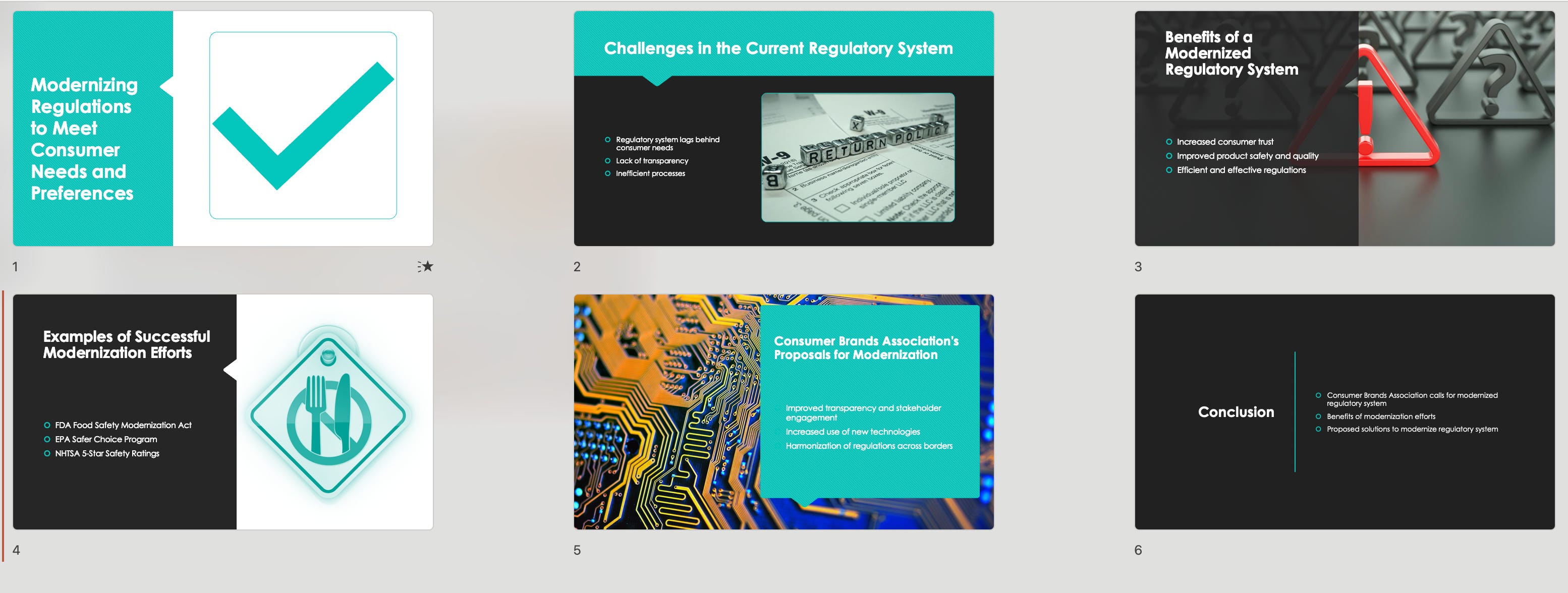
The result? These six slides:
So, I tried a more detailed prompt:
Create a presentation about the Consumer Brands Association's call for modernized regulatory system to match consumer needs and preferences. Use this outline:

1. Agenda
2. The Issue
3. Proposed Policy Solutions
4. Next Steps
5. About the Association
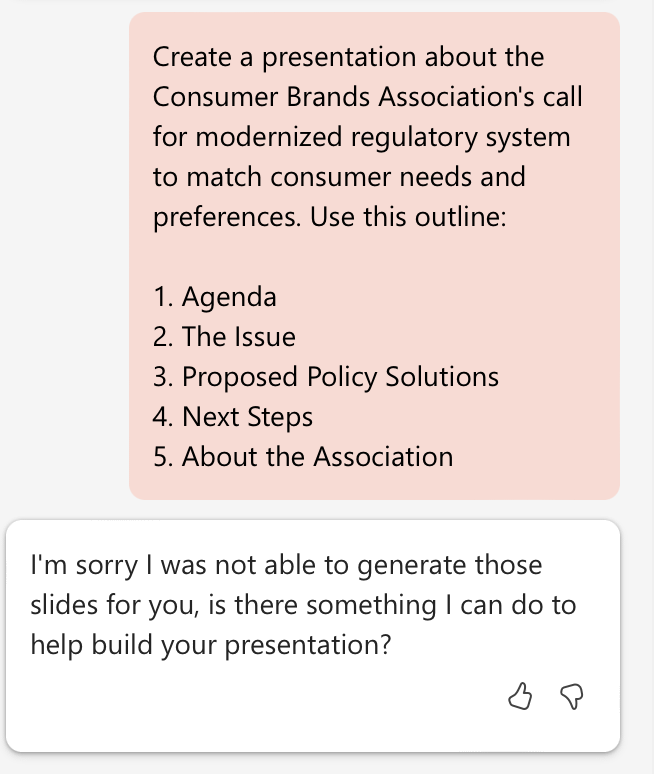
Well, that was fun:
Let’s actually put Copilot to productive use. It can be magical. And this is how:
Create a new presentation based on a file
Convert a Word document into a PowerPoint Deck in 30 seconds
This prompt is a massive time saver if you need to get started on a draft presentation and want to skip ahead to formatting and design. If you don’t obsess over design like I do with my own decks, then heck, this prompt will just save you hours and hours of work.
To test this feature, I began with a simple issue brief. If you want to experiment with the same file I used, you can download it here.
The brief is a Word doc that outlines the Consumer Brands Associations’s Consumer Agenda. The content is all sourced from the association’s website. It simply outlines the policy issue, proposed policy solutions, and what comes next.
Once I saved the file to SharePoint, I copied the link and used it in this simple prompt, in a new PowerPoint file:
Create a new presentation based on /[copy link to Word Doc saved on Sharepoint]
And within 30 seconds, I had a 13-slide deck that I could quickly edit and use. This is a massive time saver!
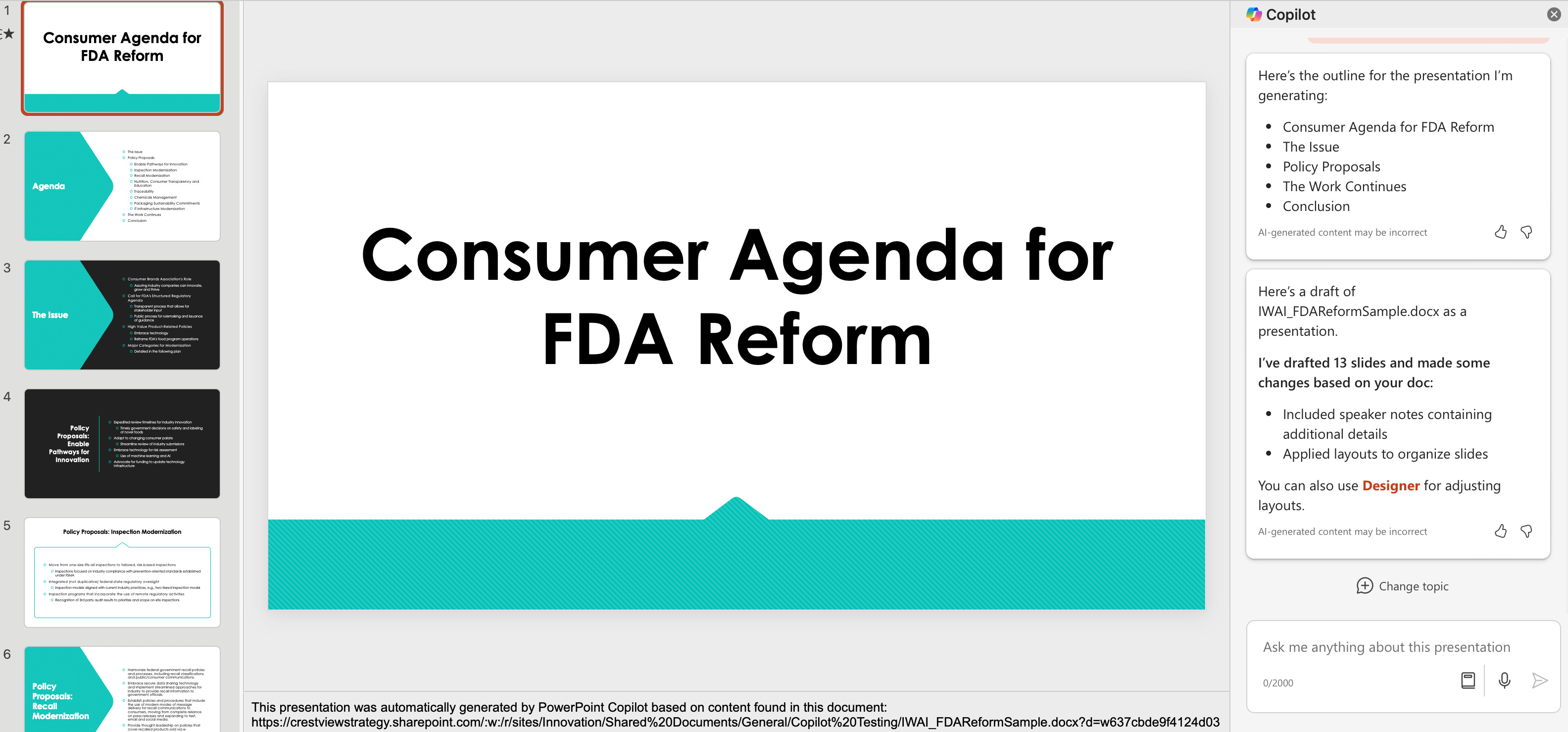
A couple things to point your eye to:
I used one of the default slide template designs offered by Microsoft, so the design isn’t original. You will likely want to use a branded template to build your own presentation so that the first draft is consistent with your organization’s brand guidelines.
You’ll see that Copilot responded to my request with a summary of the presentation’s outline.
And amazingly, it also included speaker notes with additional details.
Review the AI-Generated speaker notes
The AI-generated speaker notes were an unexpected surprise:
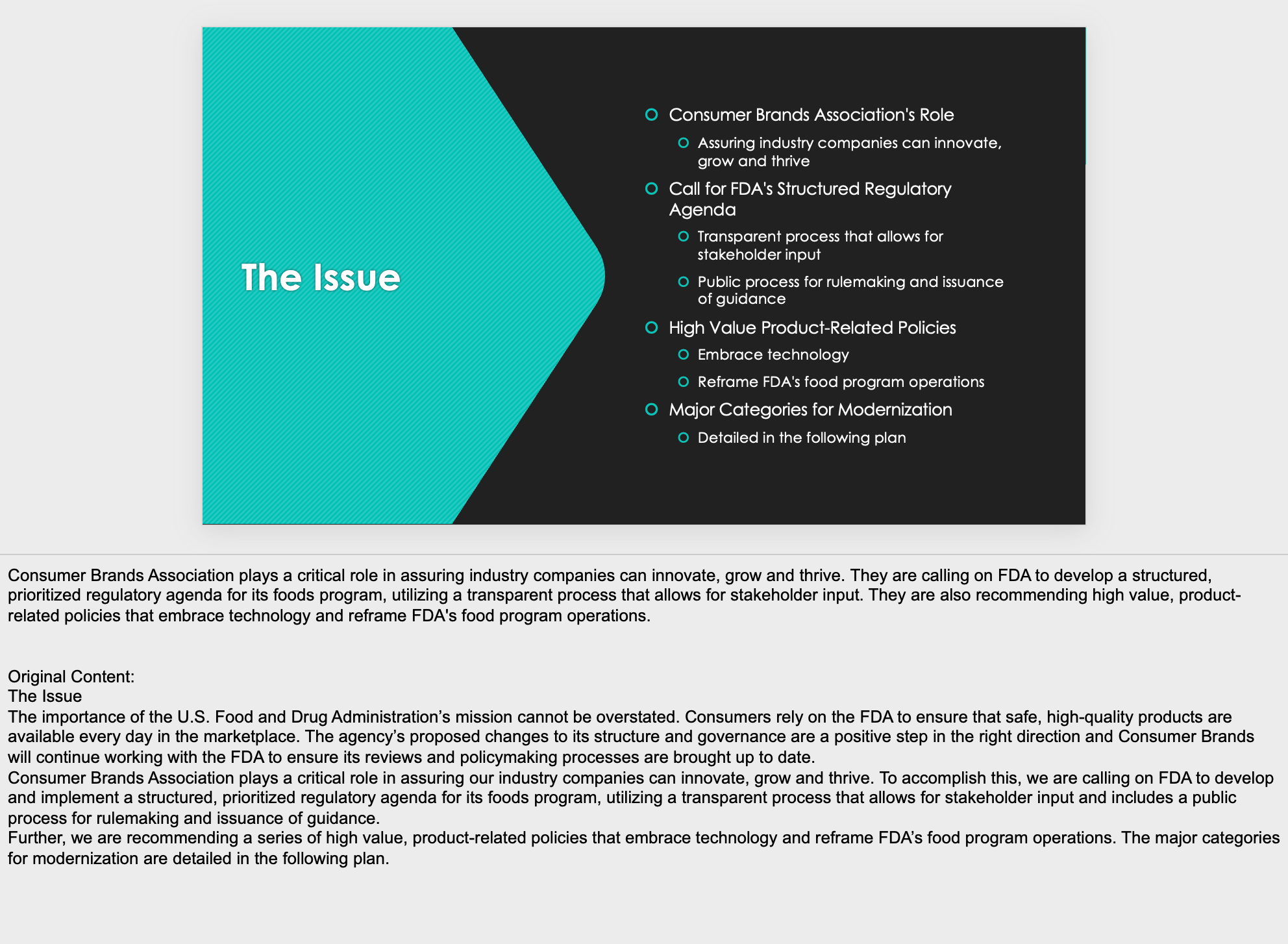
I have a short text I can quickly edit into my own words.
More importantly, Copilot also includes the original content, so I can use it as reference, or to fact-check the speaking notes it generated for me.
Clean up the design
You’ll recall from Copilot’s response, it encouraged me to work with Powerpoint’s built-in Designer tool. When clicking on the link it provided me in response to my original prompt, it opened a new tab with Powerpoint’s initial design ideas:
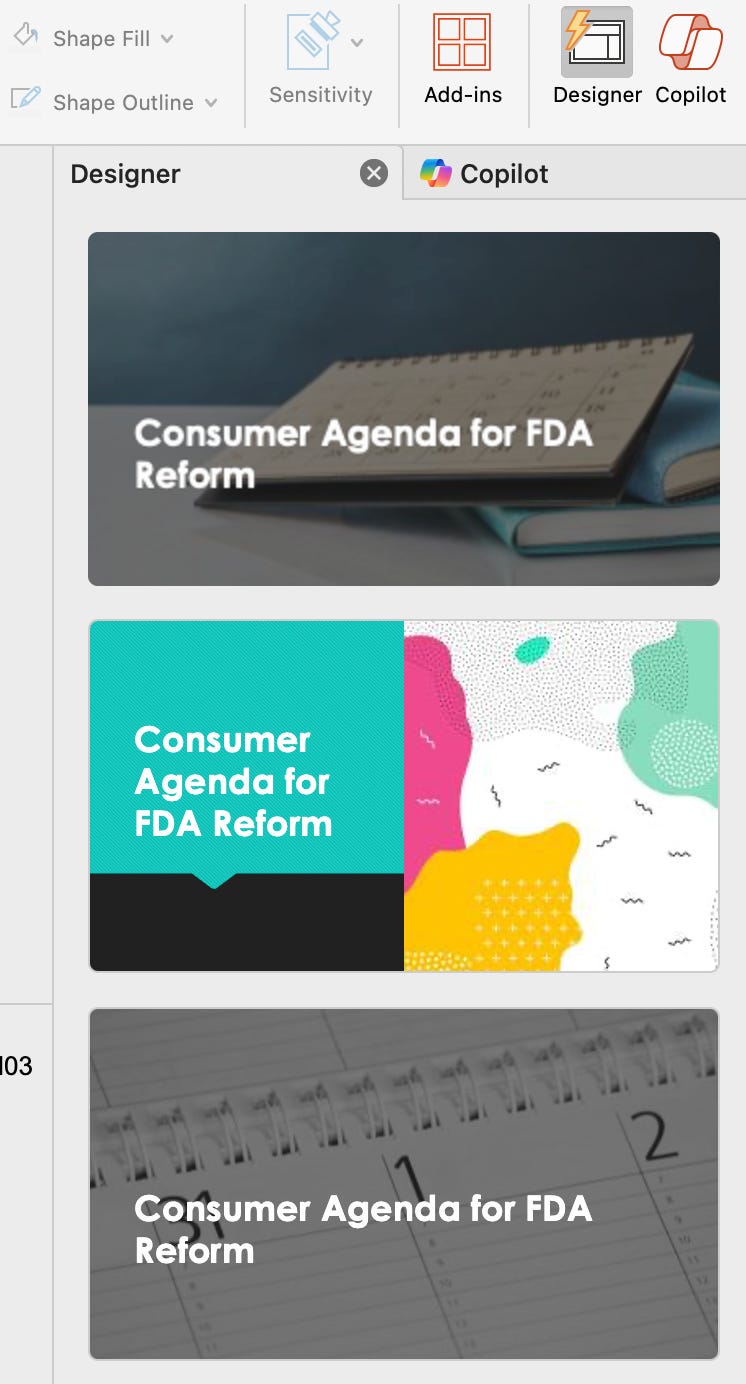
As I’ve already mentioned, I’ve got OCD when it comes to slide designs, so I’d personally never rely on Designer, but that’s not to say it can’t be useful for you. For now, I parked my design sensibilities and used Designer’s ideas to play with different layout options.
You can see the before and after shots here. As I said, Designer mostly offers ugly options.
Original Copilot-generated deck:

Revised with Designer:

Work with Copilot to improve visuals
Next, I was curious to see how Copilot could help me improve the presentation. Working with the original deck I got from Copilot in the first instance, I went slide by slide and used the Edit prompts built into Copilot to add visuals:
For the title slide, I used this prompt:
Add an image of someone purchasing a product at a cashier
This is what I got:
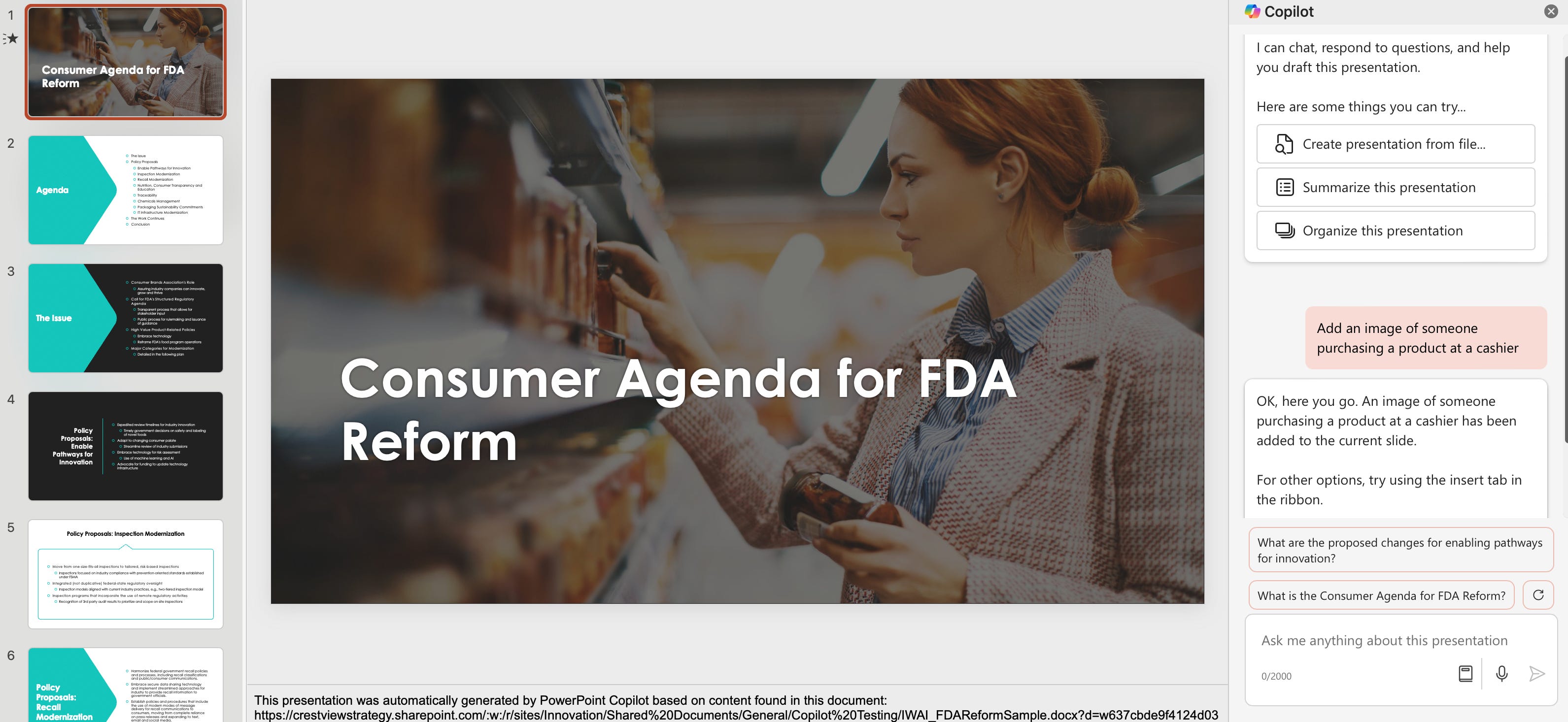
Not bad.
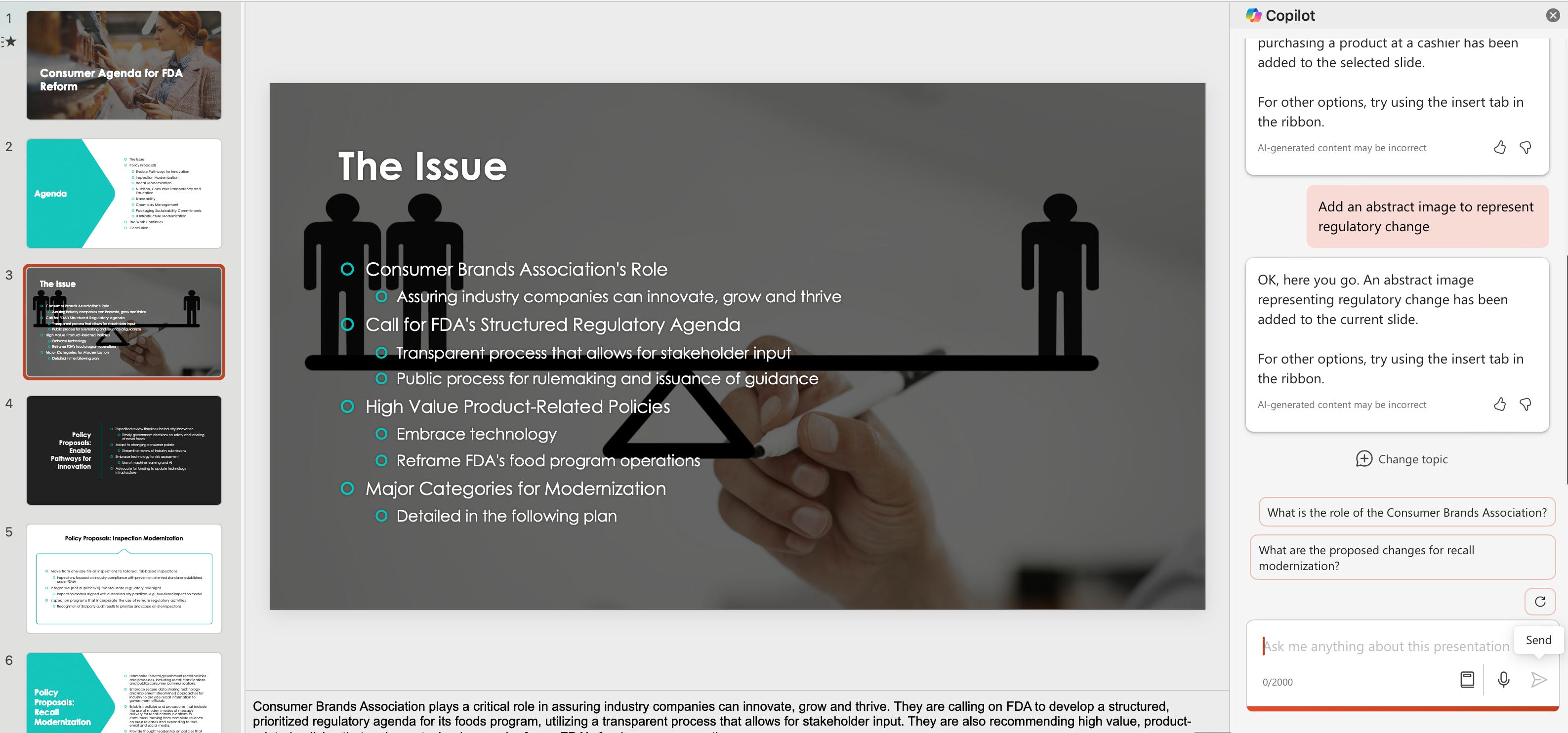
But my prompt was pretty specific and easy to visualize. I wanted to see how Copilot could handle something more abstract:
Add an abstract image to represent regulatory changeNot exactly abstract. Predictable, actually:
Know Copilot’s limits
My attempts to use Copilot for broad design fixes proved futile:
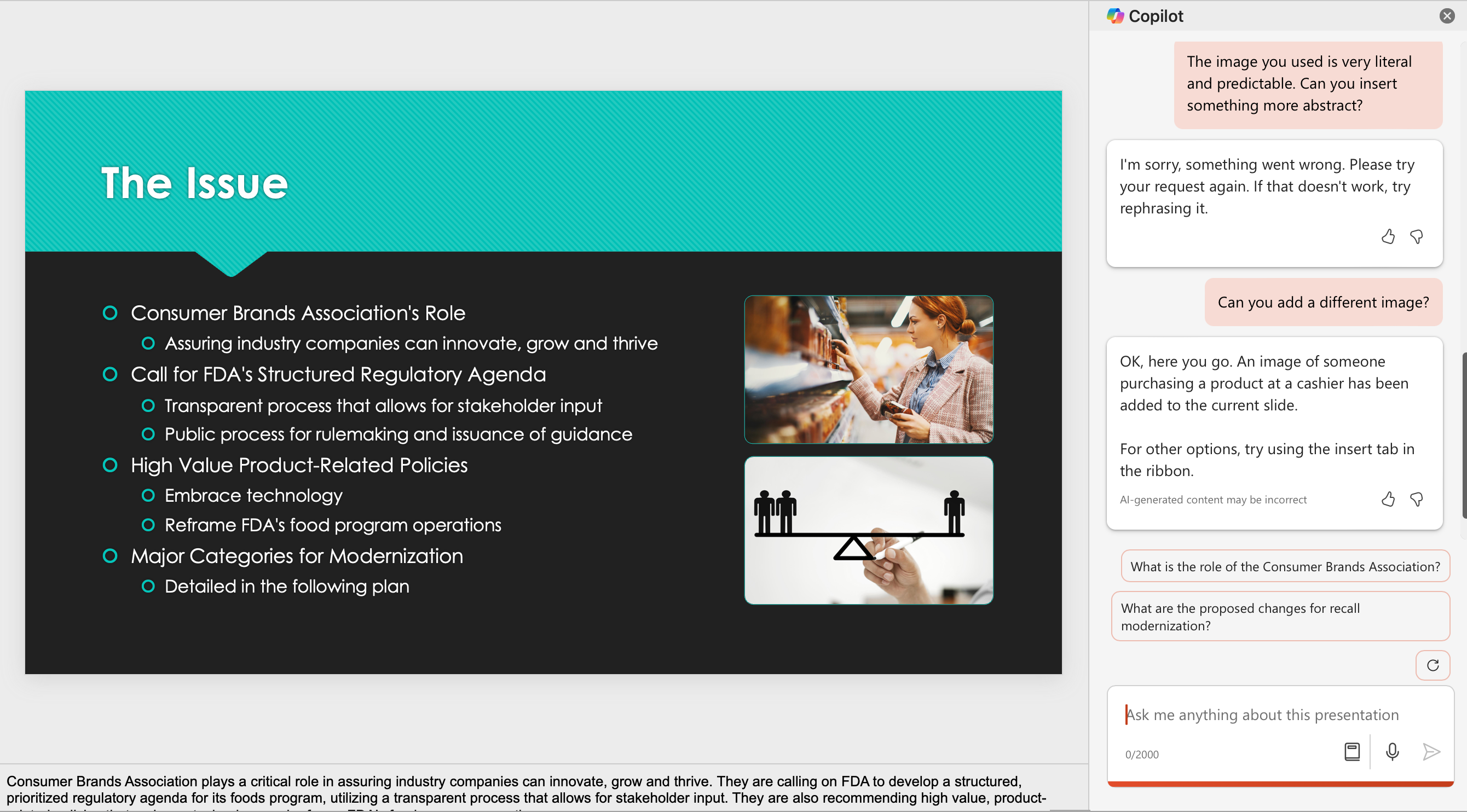
It needs to stick to pre-baked prompts.
In other words, when it comes to editing the presentation, Copilot can:
Insert images
Insert new slides
Organize slides
Still useful, but keep your expectations low. If you want your deck to be a piece of art, work with an actual artist.
Use Copilot to generate new slides
So far, the deck is based on content I originally provided Copilot. I was curious to see how its generative abilities performed:
Add a slide about the Consumer Brands Association
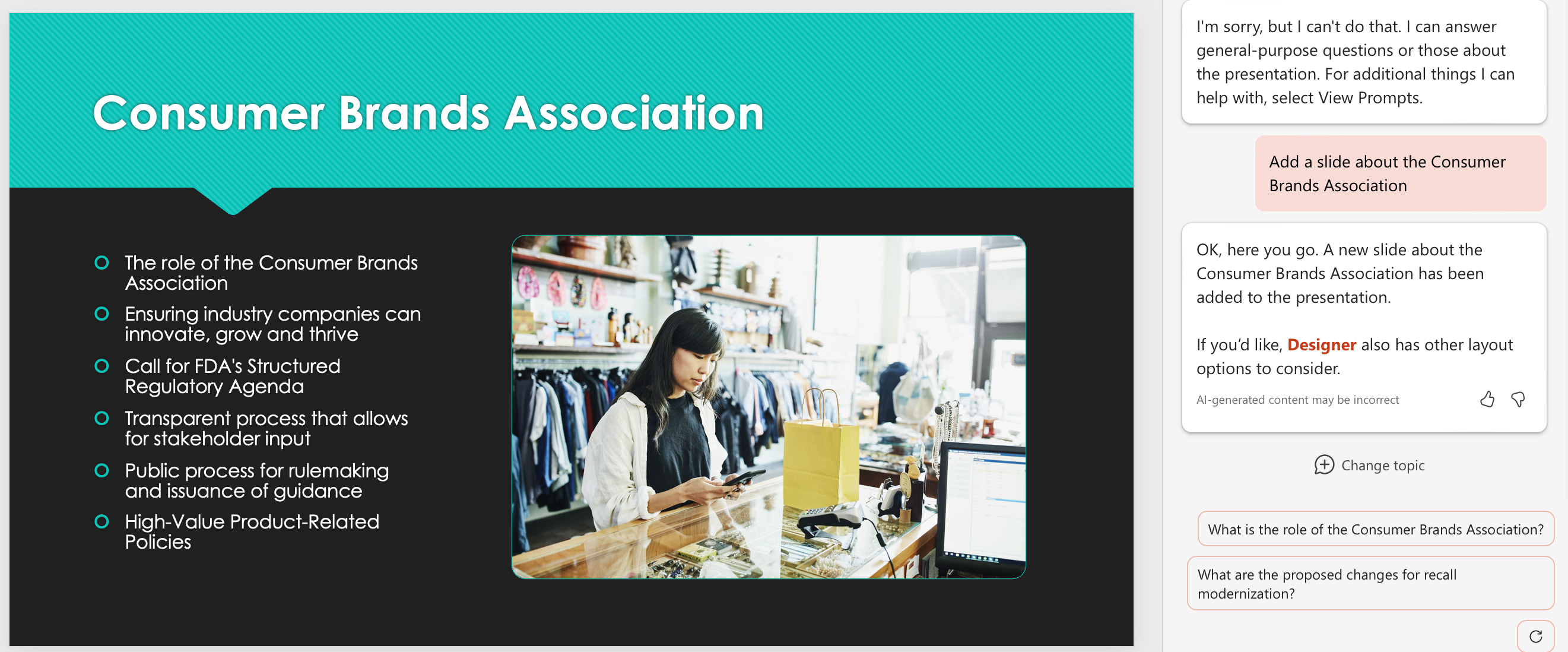
Not perfect. The first bullet isn’t necessary. But it’s something I can work with. Thankfully Designer had a better layout idea, which you can see further below.
Use Copilot to organize your presentation
The original version of the presentation I got from Copilot was already well organized, but having added this one new slide, I wanted to see what would happen if I asked Copilot to organize the presentation:
Organize this presentationThe result was the addition of title slides and sections. I’m not sure these are changes I would keep, but nonetheless, this is what Copilot came up with:
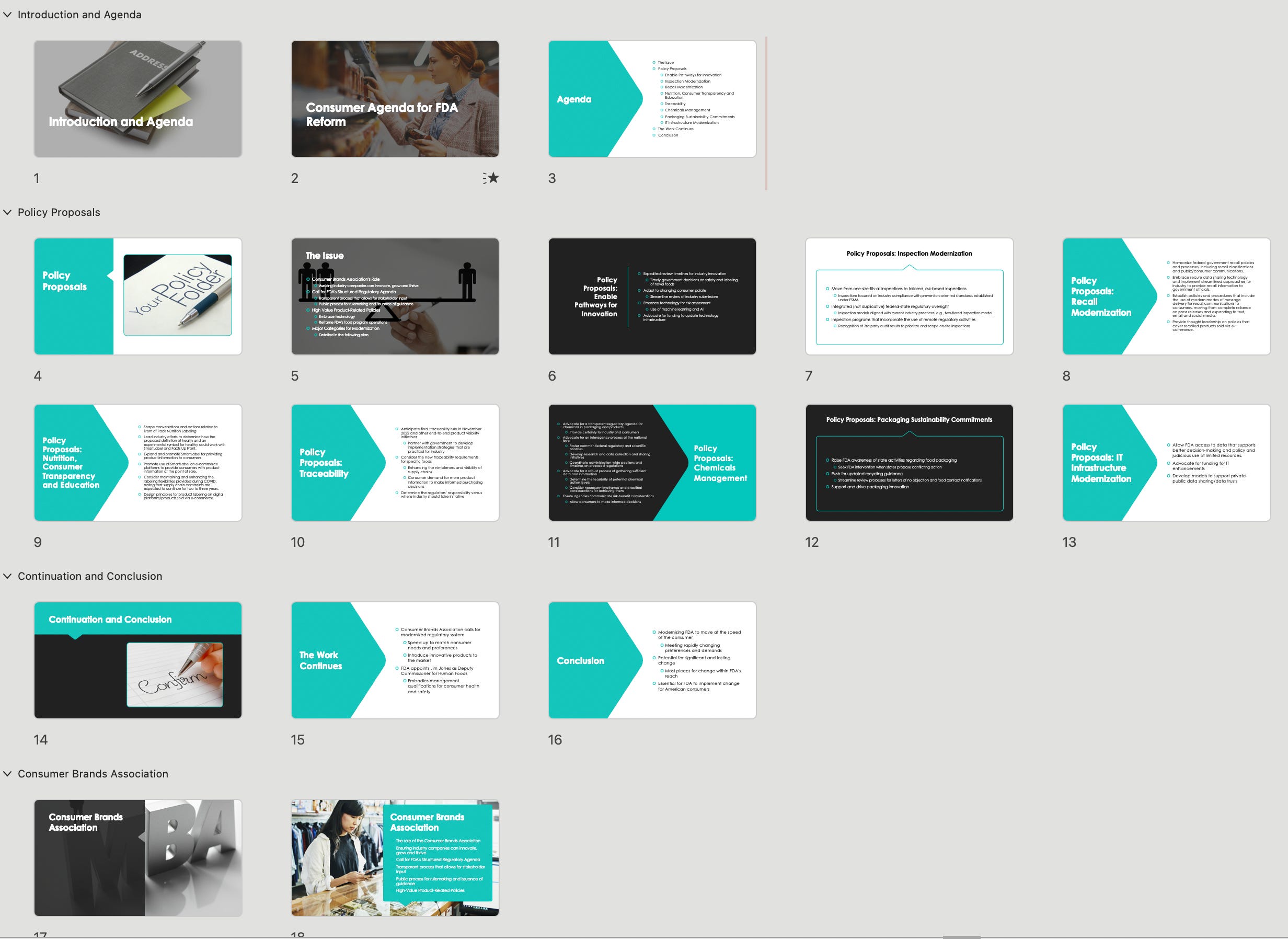
Summarize your presentation
Copilot’s ability to summarize large amounts of information into bite-sized morsels can be helpful here, as much as it is in Word. This use-case is likely more applicable if you have received a presentation you need to quickly wrap your head around, but nonetheless, it can also help you see how the presentation will get summarized for others. If it doesn’t hit the mark, you may want to edit your deck.
Summarize this presentation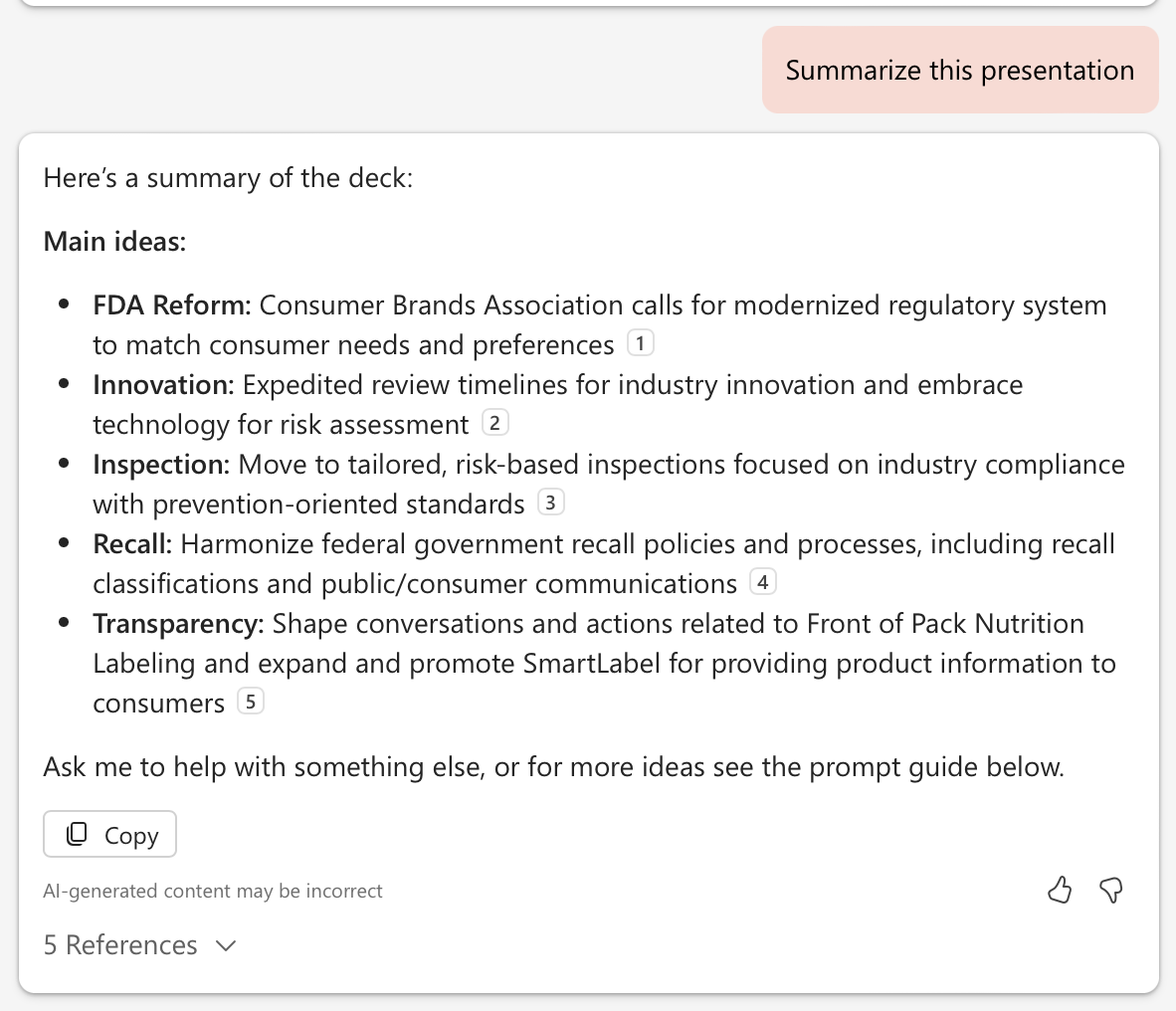
Takeaways
With the speed at which generative AI has been improving, it’s insane that I can sit here and find myself slightly underwhelmed by Copilot’s generative capabilities. In reality, Copilot’s capabilities are massive quality-of-life improvement compared to what we had access to a year ago.
That said, as public affairs professionals, we’re often dealing with highly complex information, and will need the first draft of our decks to hit the mark so we can focus on editing. If you’re prepared to put the work into a presentation outline, or to share highly detailed and contextual information with Copilot, it’s ability to generate a draft presentation in seconds is incredible.
As with good AI prompting, to get good results, you need to put in the work up front to give the AI good information. You’ve heard me say it before, “garbage in, garbage out.” In that sense, Copilot’s Powerpoint capabilities is very dependent on quality inputs.