


With many of us working in organizations that use Microsoft’s suite of productivity apps, we’re going to need to learn to work with Microsoft’s AI solutions. If your organization enables it, Copilot is now readily available for use in the suite of 365 products.
Over the next three weeks, I’m exploring ways to use Copilot, app-by-app, and providing some initial takes. This week, we put Copilot to use in Microsoft Word. Next week, we’ll look at Powerpoint. And the week thereafter, we’ll put it to the test in Excel.
What is Copilot, exactly?
Let’s be honest, it’s tough to define what we mean by Microsoft Copilot. It seems any product that has an AI feature in Bing or in the Office suite of apps is called Copilot. That said, there are now three clear levels of Copilot:

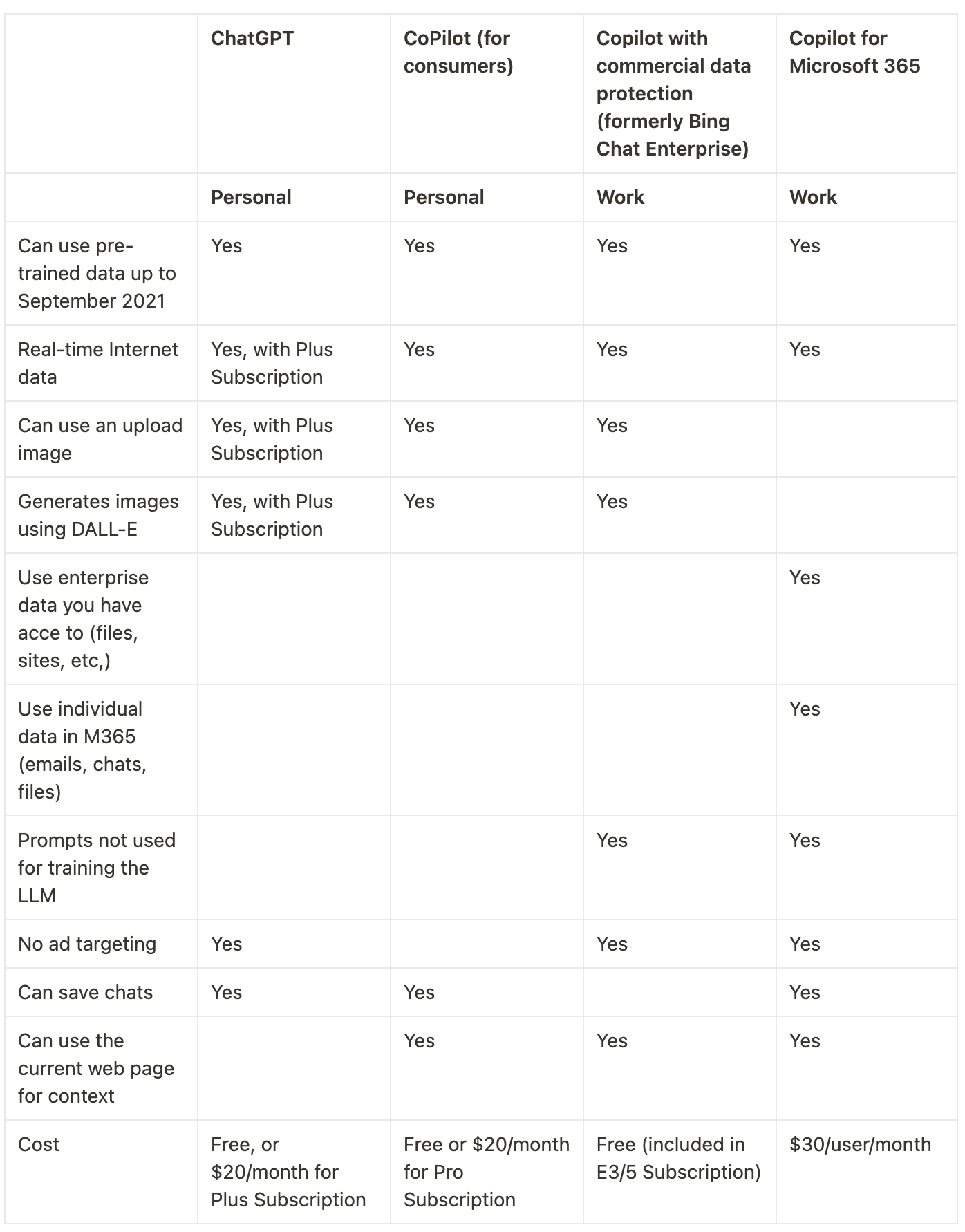
But even this chart can be a tough reference. How does the Copilot system compare to ChatGPT? And what specific features are available in each of these different Copilot systems? Here’s a more useful table:
Across all apps, Microsoft is selling Copilot as your personal assistant designed to help you:
Create
Edit
Ask
Catch Up
Understand
We’ll test this out today and over the next three weeks. Today’s focus: Microsoft Word.
What can Copilot in Word do?
Draft new content
Summarize content
Rewrite existing content
Transform text into tables
Chat to help you understand the document
Draft new content
When you have Copilot installed, you’ll start to see a new symbol in your documents. Clicking on it will pull up the prompt box:
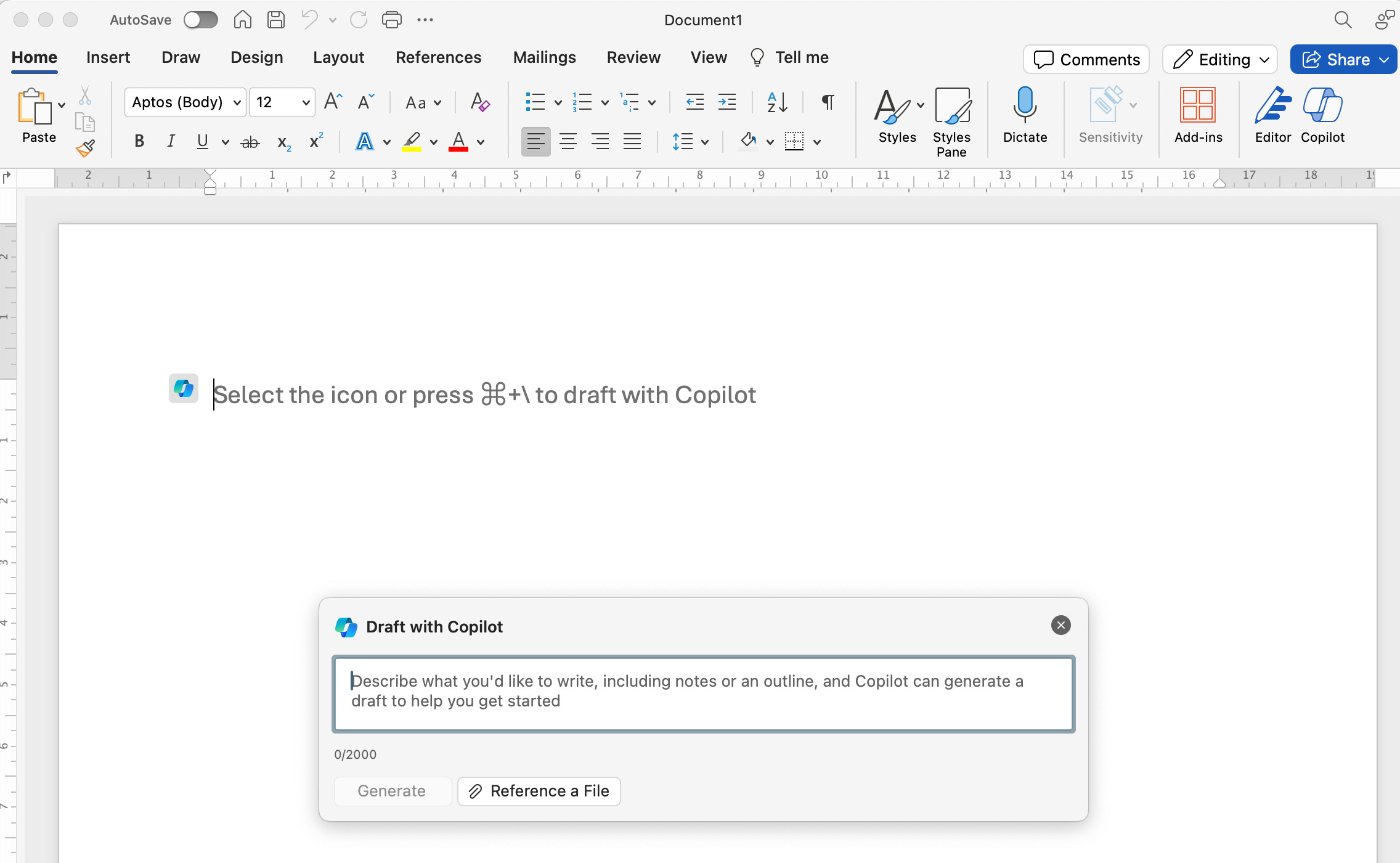
What makes Copilot in Word more powerful than ChatGPT is the ability for you to reference files on your company’s SharePoint, or on your OneDrive. This is incredibly helpful if you want to work with Copilot on existing knowledge or reference specific material. You can use this feature knowing your data is protected within your company’s digital walls.
When you click on the “Reference a File” button, you’ll get to choose one of the three most recent documents you have worked with, whether that’s in Word, Powerpoint or Excel.
I point out this feature because I’ve experienced challenges relying on Copilot to generate accurate content on current events.
Use Copilot for broad topics, not current events
With repeated attempts at getting Copilot to write me a briefing note on the upcoming elections in the United Kingdom, Copilot kept telling me Boris Johnson and Jeremy Corbyn were facing off. When I edited the prompt to make it clear I wanted an analysis of the 2024 election, it still told me Boris Johnson was the Tory leader. I mean, things get spicy in the UK, and things can move quickly…maybe Copilot knows something we don’t?
Regardless, don’t rely on Copilot to write you an accurate draft without providing it with reliable information.
I would stick to reference material or use it for more generic needs. For example, if I was tracking the recent shareholder activism fight at Disney and wanted to write a briefing note that first explained what a shareholder fight is, I’d use Copilot to write that broad explanation, and then add the specific details I want to analyze.
For example:

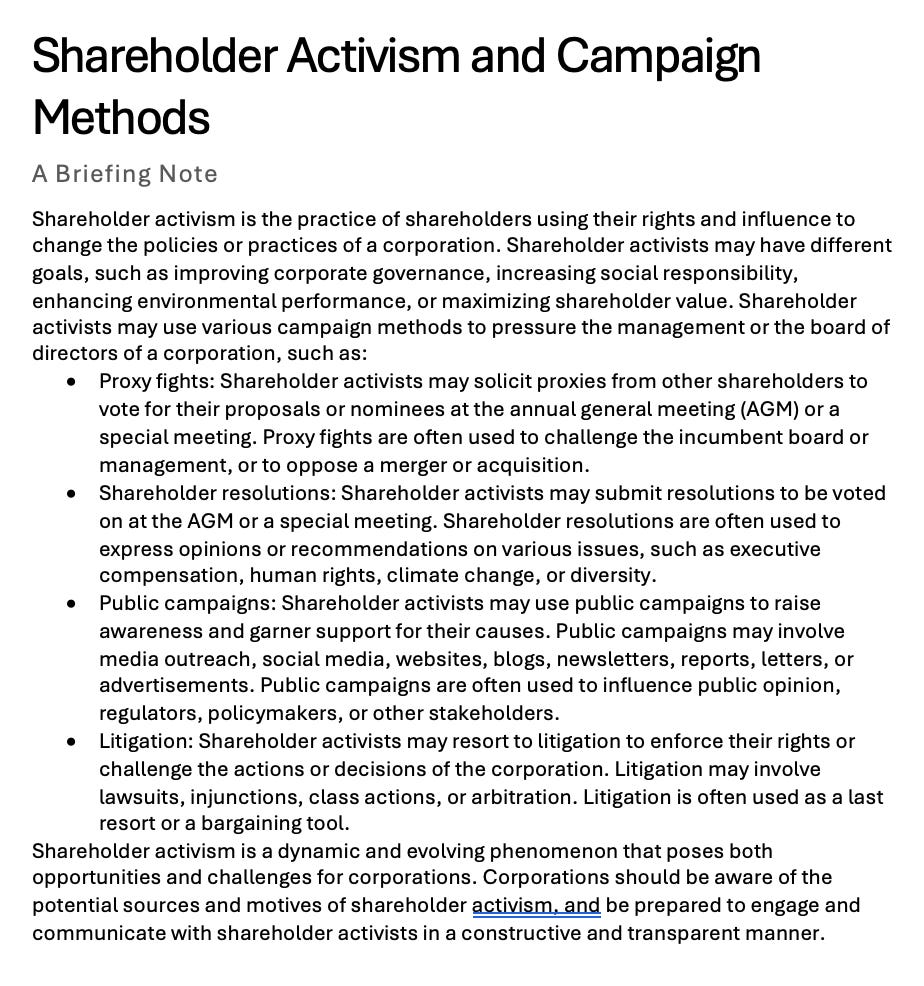
As I said, it’s fine for broad content. And it seems to produce accurate summaries of historical events:


Rewrite existing content
Given the challenges I’ve noted above with content accuracy on political events, I’ve mostly avoided using Copilot for content generation. A more useful application of the product is in the day-to-day review and editing of products.
Let’s see this in action with the shareholder activism note I began writing above. When you select a block of text in the document, you can click on the Copilot logo that will appear next to your cursor to pull up the dialogue box:
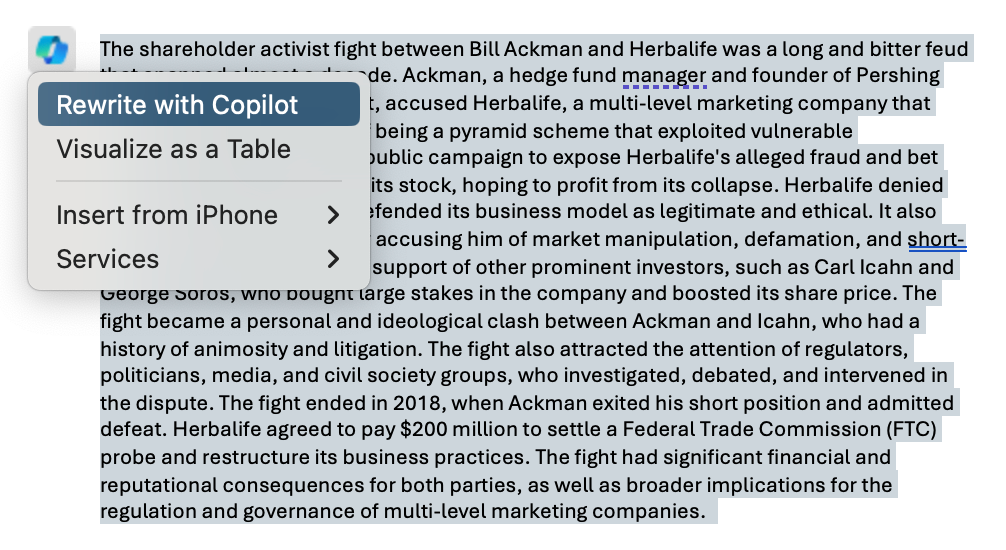
If I click on the “Rewrite with Copilot” option, Copilot gets straight to work writing different version of this text. Personally, I don’t like this; asking an AI to simply rewrite without giving it direction results in a lot of time wasted cycling through different versions of the text. Instead, click above the text you want to edit to pull up the prompt box and tell Copilot what you need, specifically:

Copilot will write a fresh block of text and give you the option to cycle through different versions of it, or to fine-tune with additional prompts:
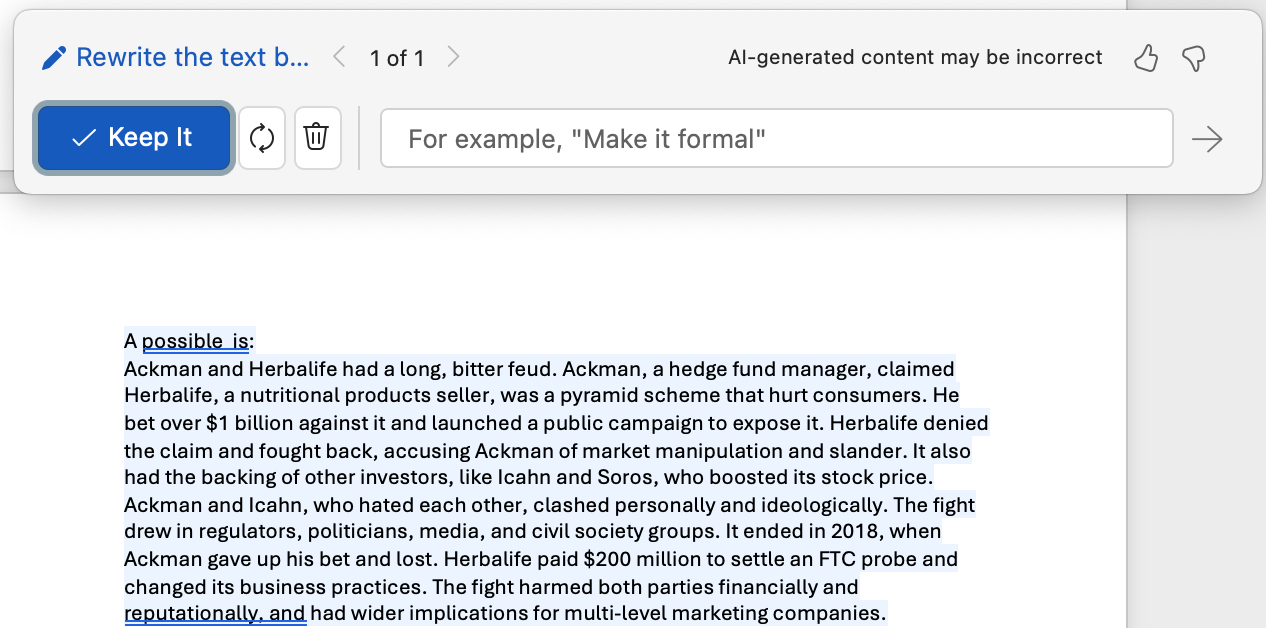
When you click the recycle icon to generate a new version, Copilot will give you the option to toggle between versions so you can compare them and pick the one you like. Once you press “Keep it”, the text is inserted in the document, and the prompt box retreats.
Transform Text into Tables
You can also use Copilot to transform text into tables. In my example, after writing a summary of Disney’s recent shareholder fight, I wanted to compare the two campaigns in a table view. I selected both sections of the document and then clicked on “Visualize as a table” option in the dialog box. This feature performed much better than I anticipated:
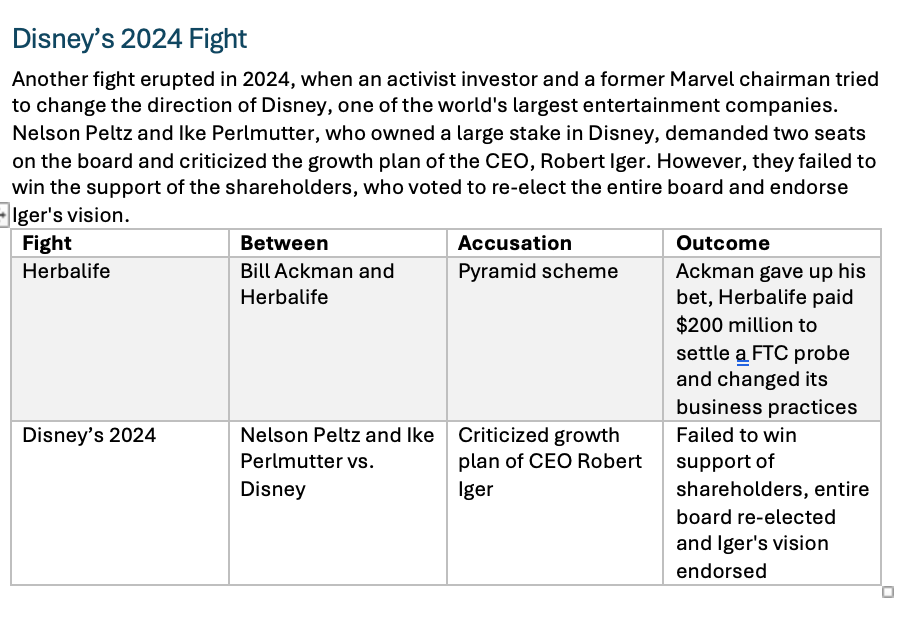
Explore the document with Copilot chat
Up to this point, we’ve been working within the document itself, using Copilot to draft and edit content. But sometimes you may want to ask questions about the content while not editing the document or content itself. This is where Copilot’s chat feature comes in handy.
A big caveat though: this is not a broad chat function like you get from ChatGPT or Gemini. It can only answer questions about the document you’re working on. In other words, you can use this to surface findings, summarize the document, pull out action items etc., but you can’t use it to conduct supplementary desktop research. For that, you’re better off using Perplexity AI.
Click on the Copilot logo in the ribbon. Copilot will offer a couple starter prompts. If this was a document I had received, I could ask it to summarize the document to get a condensed view of the content. However, in our example, I’m still in writing mode and want some help shaping it into a final product.
I’d like the briefing note to end with a call-to-action. I have one written, but I want to see if it’s clear enough to the reader:
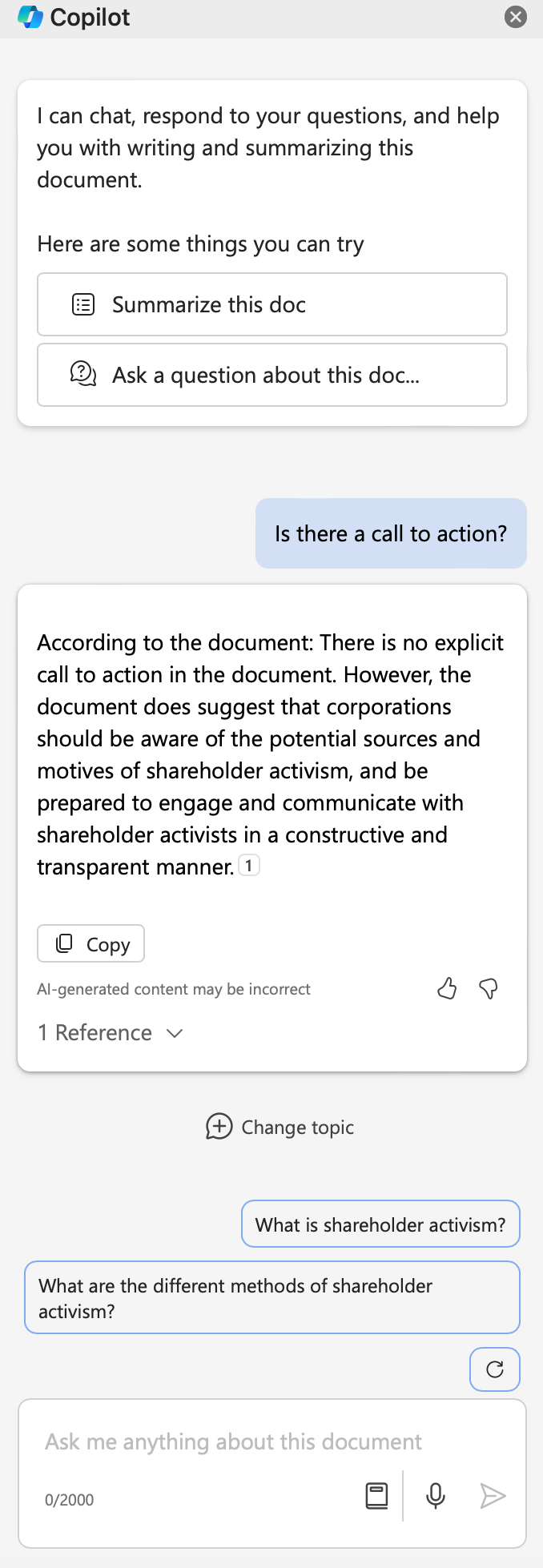
You can see the possibilities here: work with Copilot to analyze the document from a reader’s perspective and fine-tune it to perfection.
Summarize Content
Finally, if your entire team is using Copilot, you can imagine what they’ll do with your document once you share it, right? I’m guessing they won’t read the whole thing. Instead, they’ll use Copilot to get a quick summary of the document and dig deeper if they need to. Before sharing the document, why not summarize the document and see if the summary makes the points you need it to make? If it doesn’t, you could either edit the document to make sure those points are clear, or edit the summary yourself and proactively share it when you send the document along.
Let’s see this in action:
Using the chat feature (click the Copilot logo in the ribbon), ask Copilot to “Summarize this doc”:
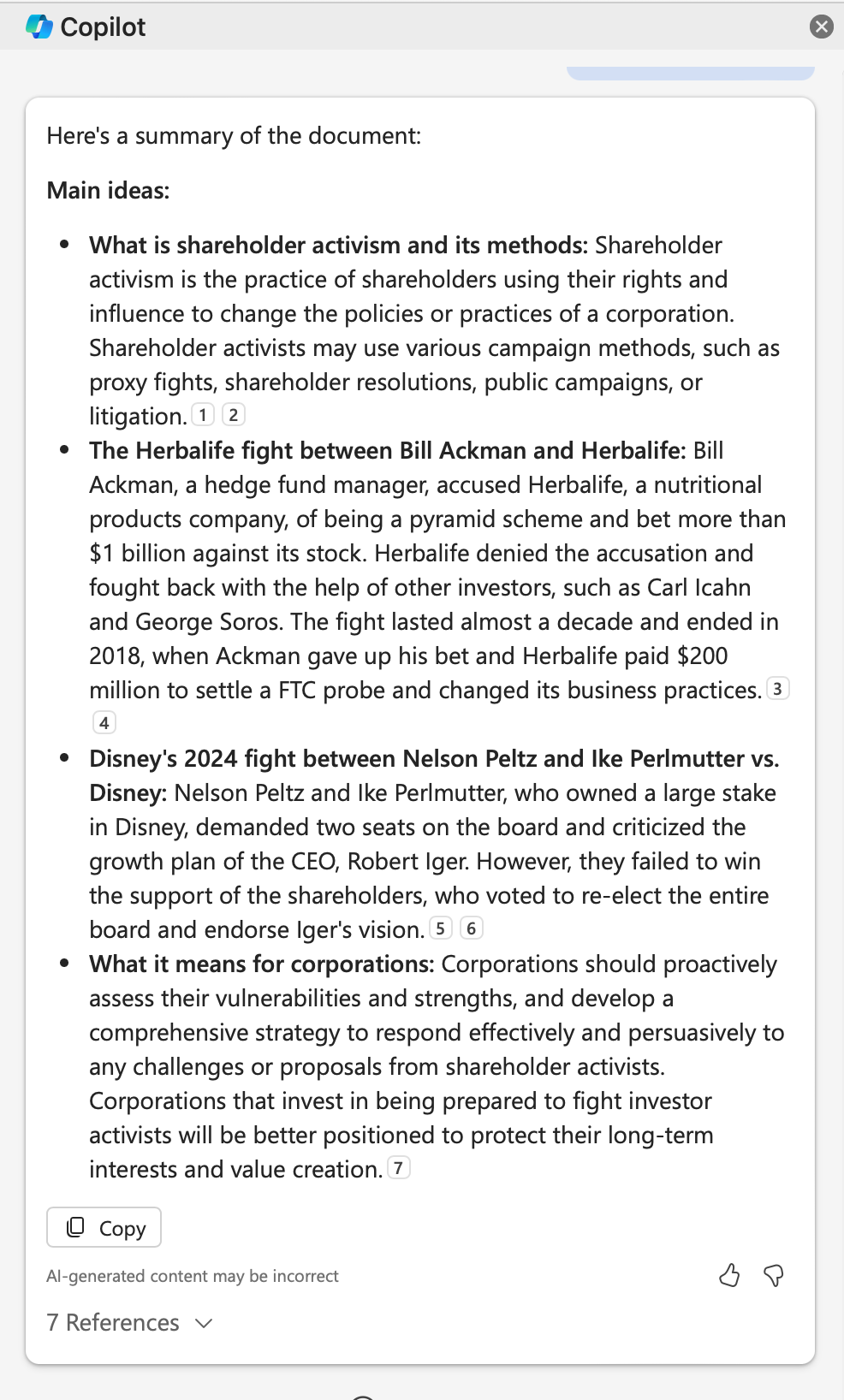
I love that the summary includes specific references to sections or key sentences in the document. It gives me the option to dig deeper, especially if this was a document someone else drafted for me. I have found this feature to be very useful when needing to consume large documents.
Take-aways
Once I got a handle on Copilots capabilities and limitations in Word, my confidence in using it for my daily use increased. I find it useful for:
Giving me accurate summaries of documents flying my way
Getting me started when I face a blank page.
Making quick formatting tweaks to a document
But, I’m very cognizant of its limitations:
I do not rely on it to generate accurate content on highly specific and contemporary events.
Also, I don’t see Copilot replacing ChatGPT in my workflows any time soon. It can help me gain some efficiencies and help me digest larger volumes of information without ever compromising information security, and that’s still very helpful.